Home security cameras have become easier to install, but many modern camera systems depend heavily on manufacturer accounts, cloud platforms, and monthly subscriptions. If you already own compatible IP cameras and simply want an easy way to view and manage them from your smartphone, a more direct approach may be all you need.
ipcamapp is designed around that idea. Its IP Cam 2 Lite app provides a straightforward way to set up, view, and manage selected IP security cameras from an Android phone, iPhone, or tablet, with a strong focus on local network access and DIY monitoring.
For users with compatible older Sercomm, Rogers, ADT, or iCamera hardware, it can also provide a useful way to continue using cameras that might otherwise be sitting unused.
What Is IP Cam 2 Lite?
IP Cam 2 Lite is an IP camera viewer and setup app developed by iDesignTECH Inc. It is designed to connect directly with supported IP cameras and let users monitor them from a mobile device.
Unlike many modern smart security products, the app is focused on direct camera access rather than requiring users to build their monitoring system around a third-party cloud subscription.
This makes it particularly interesting for homeowners, small offices, garages, workshops, and other locations where users want a relatively simple DIY IP camera monitoring system.
A Privacy-Focused Approach to IP Camera Monitoring
One of the most interesting aspects of IP Cam 2 Lite is its local-first approach.
For local viewing, compatible cameras communicate through your own network rather than requiring video to be routed through a mandatory third-party cloud service. This gives users more direct control over how their cameras are connected and viewed.
There are several potential benefits to this approach:
- Less dependency on manufacturer cloud services
- No mandatory monthly monitoring subscription for basic local viewing
- Direct access to compatible cameras on your local network
- More control over camera configuration
- A practical way to reuse supported older IP cameras
Of course, users should still follow normal network security practices, including using strong camera passwords, securing their Wi-Fi network, keeping routers updated, and avoiding unnecessary exposure of cameras directly to the public internet.
Which Cameras Does IP Cam 2 Lite Support?
IP Cam 2 Lite is not intended to be a universal IP camera viewer for every camera on the market. Instead, it currently focuses on a specific range of compatible cameras.
Supported models listed by ipcamapp include selected:
- Sercomm RC8030
- Sercomm RC8221
- Sercomm RC8221D
- Sercomm OC821D
- Sercomm RC8230
- Sercomm RC8025B-ADT
- iCamera1
- iCamera2
This could be particularly useful if you have an older Sercomm IP camera, Rogers security camera, ADT IP camera, or iCamera2 that you want to use as part of a DIY security setup.
Camera firmware and network configuration can affect compatibility, so users should check the official compatibility information before assuming a particular camera will work.
Automatic Camera Discovery Makes Setup Easier
Configuring older network cameras manually can sometimes involve finding IP addresses, ports, usernames, passwords, and network settings.
IP Cam 2 Lite attempts to simplify this process with an automatic network scanning and setup workflow for compatible cameras.
The general process is straightforward:
- Connect the compatible camera to power.
- Connect the camera to your router using a LAN cable.
- Reset the camera when required.
- Make sure your smartphone is connected to the same local network.
- Open IP Cam 2 Lite and start the camera scan.
- Secure the detected camera with an administrator password.
- Select the appropriate time zone.
- Configure Wi-Fi if required.
- Give the camera an easy-to-recognize name.
- Open the live camera view.
A detailed walkthrough is available through the official IP camera setup guide.
You Can Also Add Cameras Manually
More experienced users can manually configure an existing camera when they already know its network information.
Manual setup typically requires the camera's:
- Local IP address
- Network port
- Administrator username
- Administrator password
This can be useful when a camera is already configured on your network and you do not want to run the complete automatic setup process again.
Live Camera Viewing From Your Phone
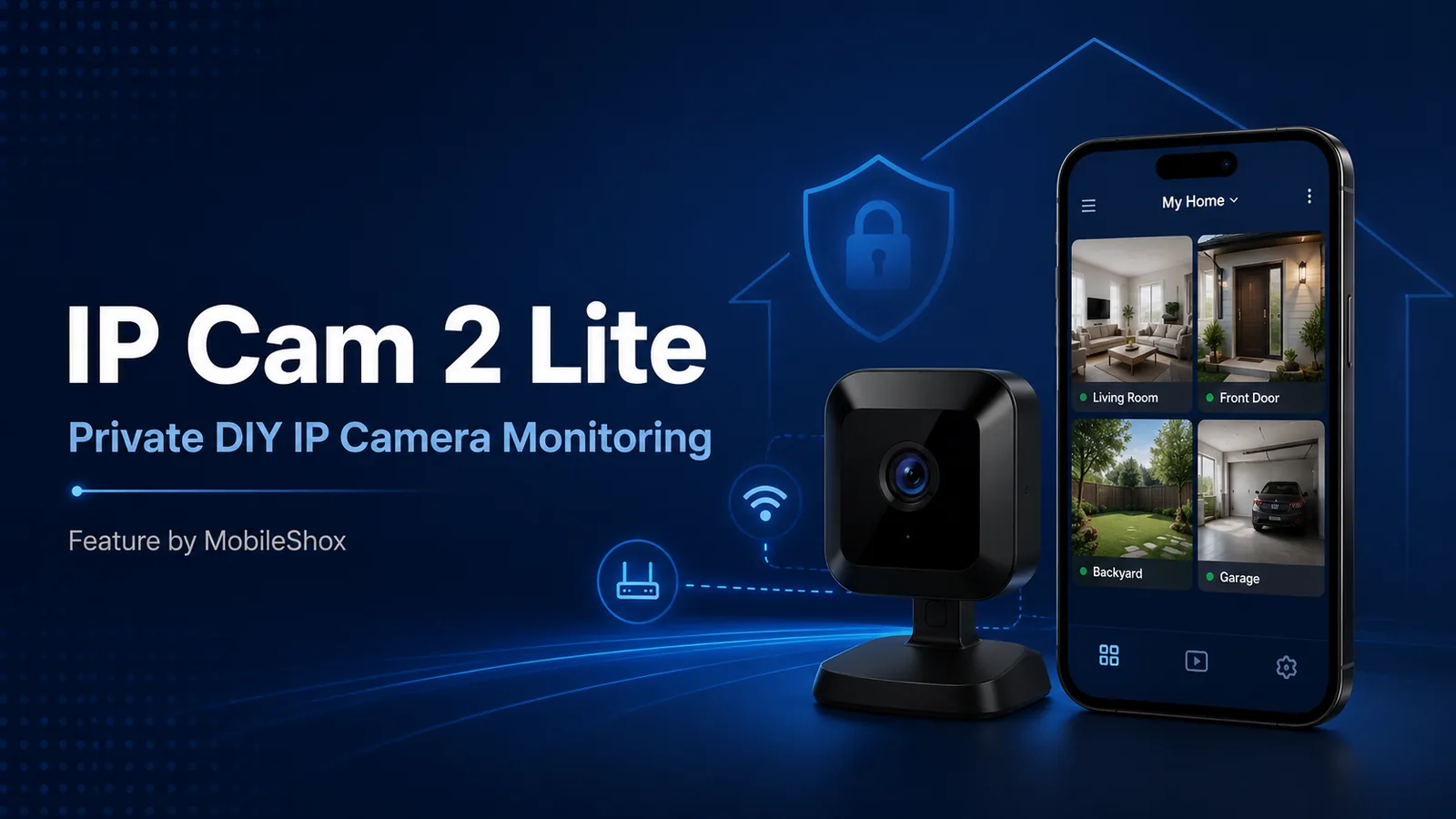
Once a supported camera has been added, IP Cam 2 Lite provides a simple interface for opening and viewing its live video feed.
Cameras can also be given descriptive names such as Front Door, Garage, Office, or Backyard, making a multi-camera installation easier to manage.
The Android Lite version currently supports up to three compatible cameras, while the current iPhone and iPad version supports up to four cameras.
That should be enough for many smaller home and office installations where users only need to monitor a few important areas.
IP Cam 2 Lite for Android
Android users can download IP CAM 2 Lite from Google Play.
The Android version includes camera discovery, manual camera setup, camera password configuration, time-zone configuration, Wi-Fi setup, camera naming, and live viewing for compatible cameras.
Download: IP CAM 2 Lite for Android on Google Play
IP Cam 2 Lite for iPhone and iPad
Apple users can also download IP Cam 2 Lite for iPhone and iPad from Apple's App Store.
The iOS version provides live viewing and management of supported IP cameras and currently supports up to four configured cameras.
Download: IP Cam 2 Lite for iPhone and iPad on the App Store
A Good Way to Reuse Older Security Cameras
One of the more practical use cases for IP Cam 2 Lite is giving compatible older security cameras another purpose.
Many homes still have cameras originally supplied through internet providers, alarm companies, or older home security installations. The camera hardware may still work perfectly well even if the original service is no longer being used.
For supported hardware, a compatible IP camera app can potentially turn those cameras into useful monitoring devices again rather than sending functional hardware to electronic waste.
You might use them to monitor:
- A front entrance
- A garage
- A home office
- A workshop
- A pet area
- A basement
- A vacation property
- A small business or office
No Subscription Required for Basic Local Monitoring
Subscription fatigue has become a real issue in the smart-home market. Cameras that initially appear inexpensive can become considerably more expensive when cloud recording, advanced notifications, or other features require ongoing monthly payments.
IP Cam 2 Lite takes a simpler approach to basic camera viewing. The Lite version can be used for compatible local camera monitoring without requiring an ongoing subscription.
This does not mean it replaces every feature offered by full cloud-based home security platforms. Instead, it is aimed at users who primarily want straightforward camera access and greater control over their existing hardware.
IP Cam 2 Pro Is Also Planned
For users who need more advanced functionality, IP Cam 2 Pro is being developed as the more advanced version of the platform.
According to ipcamapp, the Pro version is intended to expand the platform with additional monitoring features and secure remote-access capabilities.
Users interested in those features should check the official website for current availability rather than assuming features announced for the Pro version are included with IP Cam 2 Lite.
What If Your Camera Is Not Detected?
Network camera setup can occasionally require troubleshooting, particularly with older hardware.
If a camera is not detected, some of the first things to check include:
- The camera is receiving power.
- The LAN cable is connected correctly.
- Your phone and camera are connected to the same network.
- The camera has completed its factory reset.
- The correct administrator username and password are being used.
- The app has permission to access devices on your local network.
The official IP Cam 2 setup and troubleshooting guide provides detailed instructions, while the IP camera FAQ covers common camera discovery, Wi-Fi, LAN, password, and configuration problems.
Is IP Cam 2 Lite Worth Trying?
If you own one of the supported camera models, IP Cam 2 Lite is an interesting option for creating a small DIY monitoring system without immediately committing to another cloud-based security ecosystem.
Its biggest appeal is simplicity. Instead of trying to be a complete enterprise surveillance platform, the app concentrates on helping users configure compatible cameras, manage them from a mobile device, and access live video.
It may be particularly useful for people trying to reuse compatible Sercomm, Rogers, ADT, iCamera1, or iCamera2 hardware.
Before installing, check your exact camera model against the current compatibility list at ipcamapp.com.
Download IP Cam 2 Lite
If you have a compatible camera and want to try a simple DIY IP camera monitoring setup, IP Cam 2 Lite is available for both major mobile platforms.
Android: Download IP CAM 2 Lite from Google Play
iPhone and iPad: Download IP Cam 2 Lite from the Apple App Store
Official Website: Visit ipcamapp.com
Setup Guide: View the IP Cam 2 camera setup guide
Note: Camera compatibility, firmware, network configuration, mobile operating system requirements, and available features can change over time. Always check the official ipcamapp website and relevant app store listing before installing or configuring your cameras.