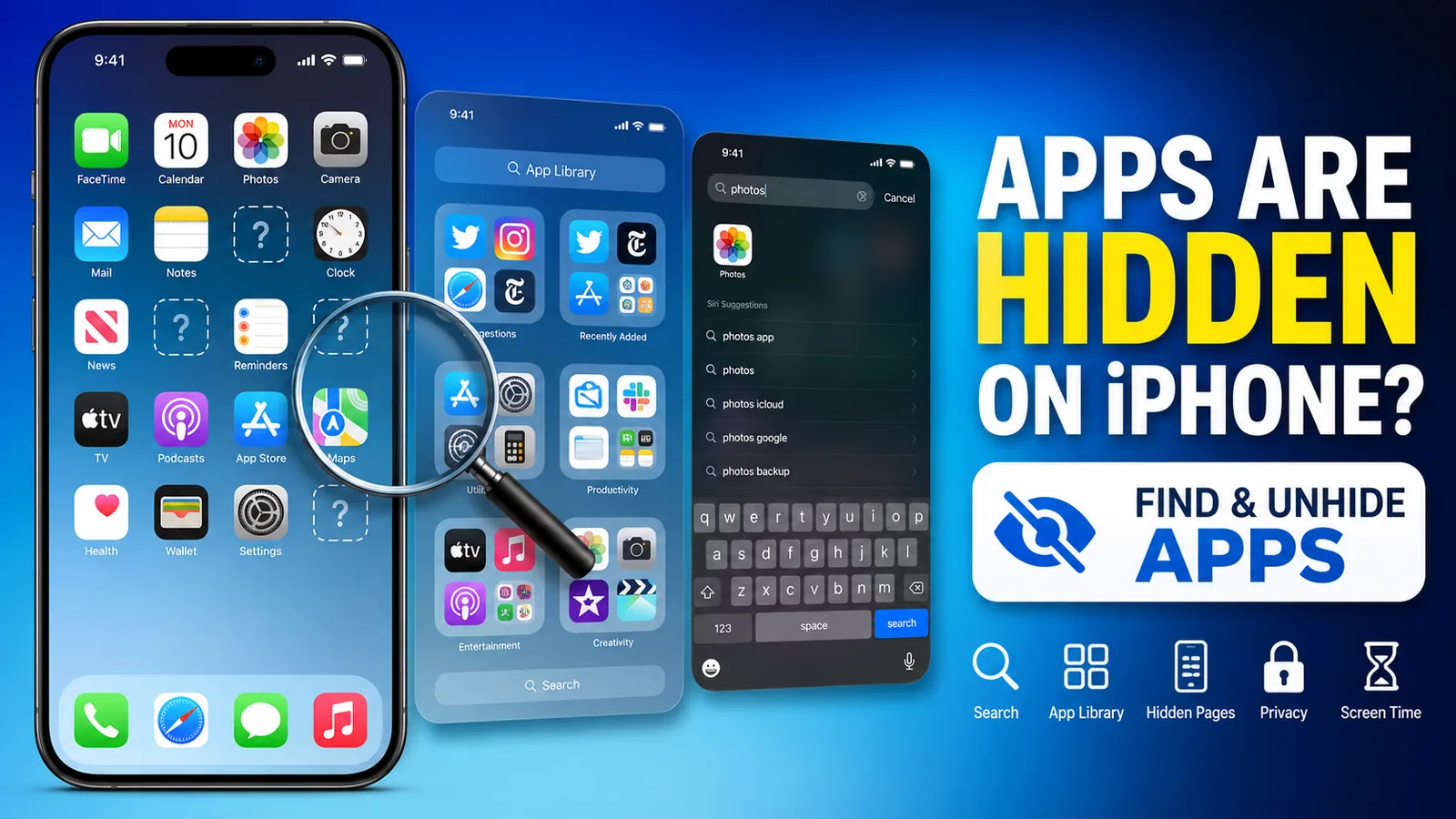
Can't find an app on your iPhone? Don't panic—it probably isn't gone.
With recent versions of iOS, Apple has introduced several ways for apps to disappear from your Home Screen without actually being deleted. They may be hidden in the App Library, moved to a hidden Home Screen page, restricted by Screen Time, or intentionally hidden for privacy.
This guide explains how to find hidden apps on an iPhone and restore them in just a few minutes.
Why Apps Disappear on iPhone
There are several reasons why an app may no longer appear where you expect it:
- The app was removed from the Home Screen but is still installed.
- The app is located in the App Library.
- A Home Screen page was hidden.
- Screen Time restrictions are preventing access.
- The app was hidden using Apple's privacy features.
- The app was accidentally deleted.
- The app icon became temporarily unavailable after an iOS update.
Fortunately, each issue has a simple fix.
Method 1: Search for the App
The fastest way to locate a missing app is by using Spotlight Search.
Steps
- Swipe down on the Home Screen.
- Type the app's name.
- If it appears in the results, tap it to open.
- Hold the app icon.
- Select Add to Home Screen if available.
If you can launch the app from Search, it means the app is still installed.
Method 2: Check the App Library
Starting with iOS 14, every installed app automatically appears in the App Library.
To find it:
- Swipe left through all Home Screen pages.
- Open the App Library.
- Search for the missing app.
- Press and hold the app.
- Tap Add to Home Screen.
Many users accidentally remove apps from the Home Screen without realizing they're still available here.
Method 3: Unhide Home Screen Pages
Sometimes an entire page of apps is hidden.
To restore it:
- Press and hold an empty area on the Home Screen.
- Tap the page indicator (the row of dots at the bottom).
- Hidden pages will appear unchecked.
- Check the page you want.
- Tap Done.
All apps on that page will reappear instantly.
Method 4: Check Hidden Apps (Privacy Feature)
Newer versions of iOS allow users to hide apps for privacy.
If someone hid an app intentionally, it may appear in the Hidden Apps section.
To check:
- Open the App Library.
- Scroll to the Hidden section if available.
- Authenticate using Face ID or Touch ID.
- Press and hold the app.
- Choose Don't Require Face ID or move it back to the Home Screen (depending on your iOS version).
This feature is useful for banking apps, messaging apps, and other private content.
Method 5: Review Screen Time Restrictions
Parents or users may restrict apps using Screen Time.
To check:
- Open Settings.
- Tap Screen Time.
- Select Content & Privacy Restrictions.
- Tap Allowed Apps & Features.
- Make sure the missing app category is enabled.
Also review:
- App Limits
- Downtime
- Content Restrictions
These settings can make apps seem as though they have disappeared.
Method 6: Make Sure the App Wasn't Deleted
If the app isn't installed anymore:
- Open the App Store.
- Search for the app.
- If you see the download icon, reinstall it.
- If you see Open, the app is already installed.
After reinstalling, the icon should return to your Home Screen.
Method 7: Reset the Home Screen Layout
If many icons are missing or disorganized:
- Open Settings.
- Go to General.
- Tap Transfer or Reset iPhone.
- Choose Reset.
- Tap Reset Home Screen Layout.
This restores the default app arrangement without deleting any data.
Method 8: Restart Your iPhone
Occasionally, app icons disappear because of a temporary iOS glitch.
Simply:
- Restart your iPhone.
- Wait for it to reboot.
- Check if the missing app returns.
A restart often fixes icon cache problems after software updates.
Method 9: Update iOS
Apple regularly fixes Home Screen and App Library bugs through software updates.
To update:
- Open Settings.
- Tap General.
- Select Software Update.
- Install the latest available version.
Keeping iOS updated helps prevent display issues and improves overall stability.
Frequently Asked Questions
Why can't I find an app that is still installed?
The app may have been removed from the Home Screen, moved to the App Library, hidden using privacy features, or restricted through Screen Time.
Does removing an app from the Home Screen delete it?
No. Removing an app from the Home Screen only removes its shortcut. The app remains installed and can still be opened through Search or the App Library.
Can someone hide apps on my iPhone?
Yes. Recent versions of iOS allow apps to be hidden and protected with Face ID or Touch ID for added privacy.
Will resetting the Home Screen delete my apps?
No. Resetting the Home Screen only restores the default icon layout. Your apps, photos, and personal data remain untouched.
Why did apps disappear after an iOS update?
Occasionally, an iOS update may rearrange Home Screen pages or temporarily affect app icons. Restarting your iPhone or updating to the latest version usually resolves the issue.
Final Thoughts
Missing apps on an iPhone are usually easy to recover. In most cases, the app is still installed—it has simply been moved, hidden, or restricted.
Before reinstalling anything, check Spotlight Search, the App Library, hidden Home Screen pages, and Screen Time settings. These steps solve the majority of missing app issues and can save you time.
If none of these methods work, updating iOS or resetting your Home Screen layout is often enough to restore normal behavior.