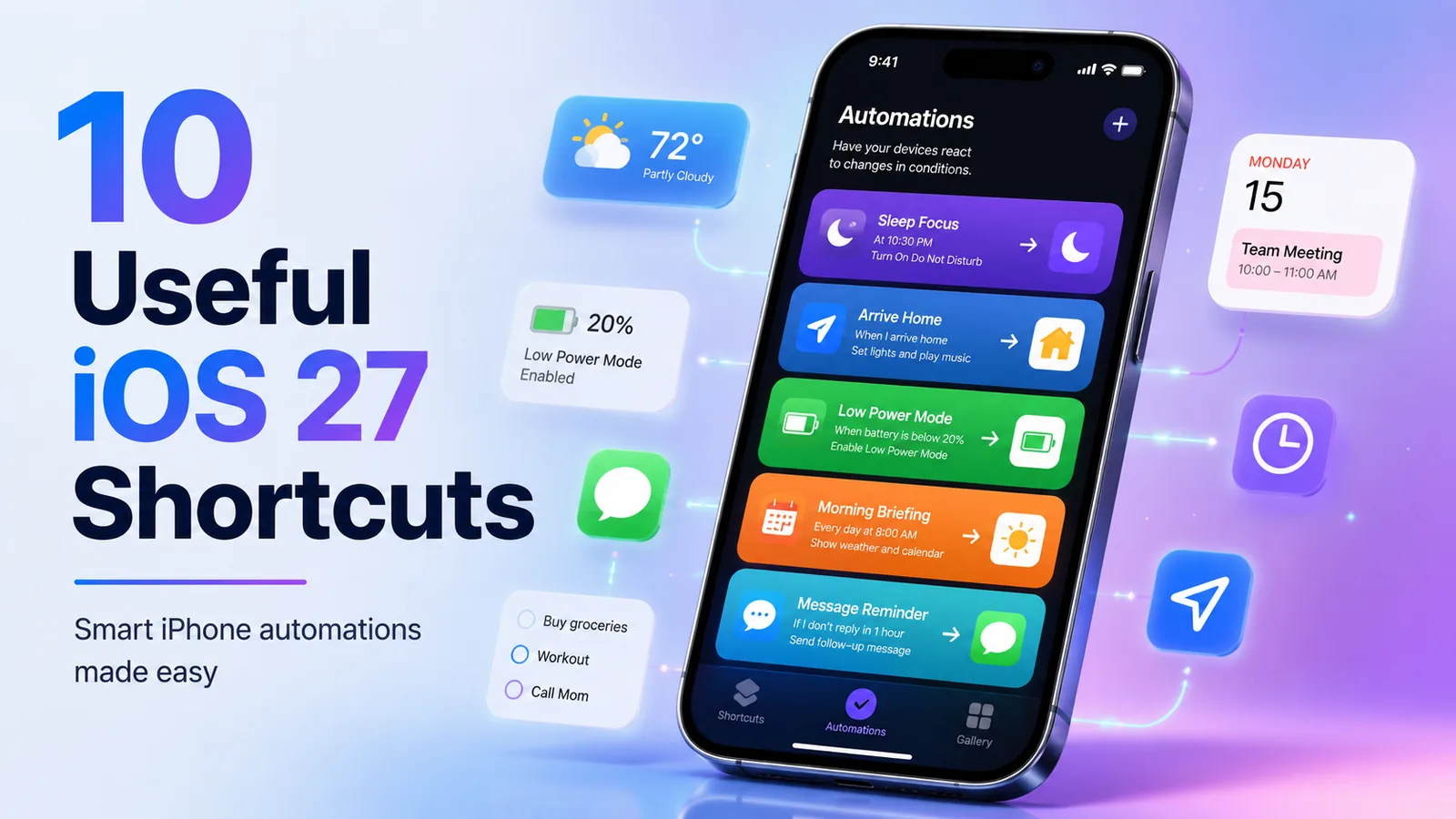
Apple's Shortcuts app has been one of the most powerful tools built into the iPhone for years, but many users have barely touched it. Building useful automations traditionally meant understanding actions, variables, conditions, triggers and how different steps connect.
With iOS 27, Apple is making Shortcuts much easier to use.
A new Apple Intelligence feature called Describe a Shortcut lets you explain what you want your iPhone to do using normal language. Apple Intelligence can then assemble the required actions for you, turning ideas that previously required manual setup into automations that everyday iPhone users can realistically create.
Whether you want to reduce distractions, remember important tasks, simplify your morning routine or automate repetitive actions, here are 10 practical iOS 27 Shortcuts worth trying.
What Is Different About Shortcuts in iOS 27?
The biggest change is that you no longer have to understand every Shortcuts action before you start building something.
When creating a new shortcut on a compatible iPhone, you can describe the result you want. Apple Intelligence analyzes the request, selects appropriate actions and assembles the workflow.
You can also ask it to modify what it created. For example, you might start with:
"Show me today's weather every morning."
Then refine it with:
"Also show my first calendar appointment and reminders due today."
You can still open the traditional Shortcuts editor and manually change individual actions if you want more control.
Before You Start: Device Compatibility Matters
iOS 27 itself supports a broad range of iPhones, including models going back several generations. However, the new Apple Intelligence-powered shortcut creation features require an Apple Intelligence-compatible device.
That includes iPhone 15 Pro, iPhone 15 Pro Max, iPhone 16 models and newer compatible iPhones.
Users with older iPhones that support iOS 27 can still use the traditional Shortcuts app and many of the automation ideas below, but they may need to build them manually instead of using Describe a Shortcut.
1. Create a Personalized Morning Briefing
Instead of checking Weather, Calendar and Reminders individually every morning, combine them into one shortcut.
Try describing something similar to:
"Every morning, show me today's weather, my first calendar appointment and reminders due today."
You could take the automation further by having your iPhone:
- Show today's weather forecast
- Display your first meeting
- List overdue reminders
- Show your battery percentage
- Open your preferred news or productivity app
Set the automation to run at a specific time each morning and your phone can prepare the information automatically.
2. Get a Low-Battery Warning Before Leaving Home
Few things are more annoying than leaving home and realizing your iPhone has only 20 percent battery remaining.
Shortcuts can combine your location with your current battery level.
You could ask:
"When I leave home, check my battery level. If it is below 50 percent, remind me to bring my charger or power bank."
This is especially useful for commuters, travelers and anyone who regularly relies on their phone throughout the day.
You can adjust the battery threshold to match your usage. A heavy user might prefer a warning below 70 percent, while someone who stays near a charger may only need an alert below 30 percent.
3. Make Your iPhone Ask Before Opening a Distracting App
Screen Time already provides useful controls, but Shortcuts can add another small barrier between you and apps you tend to open automatically.
For example:
"Whenever I open Instagram, ask whether I really want to continue."
The same idea could be applied to TikTok, X, Facebook, YouTube or almost any app that tends to consume more time than intended.
This does not completely block the app. Instead, it introduces a deliberate moment before you start scrolling, which may be enough to stop some automatic app-opening habits.
4. Automatically Send Your ETA When Leaving Work
Location-based automations are one of the most useful capabilities in Shortcuts.
You could create something like:
"When I leave work, send my ETA home to my partner."
Your shortcut could combine your current location with Maps and Messages to calculate an estimated arrival time and send it automatically.
You could also extend the workflow to start a podcast, open driving directions or enable a particular Focus mode.
For example:
"When I leave work, send my ETA, start navigation home and play my podcast."
A multi-step automation like this is where Shortcuts becomes particularly useful.
5. Extract Text From Screenshots Automatically
iPhone's Live Text feature can already recognize text inside images. Shortcuts can turn that capability into a faster workflow.
If you frequently take screenshots containing addresses, confirmation numbers, product information, quotes or other text, you could create an automation that extracts the text for you.
For example:
"When I take a screenshot, extract the text and copy it to the clipboard."
You can then paste the text directly into Notes, Messages, Mail or another app without manually opening the screenshot and selecting the text.
Another variation could automatically create a new note containing the extracted information.
6. Automatically Prepare Your iPhone for Bed
A nighttime shortcut can combine several actions that you might otherwise perform manually.
Try:
"At 10:30 PM, turn on Sleep Focus, lower my screen brightness and set an alarm based on my first calendar event tomorrow."
If you use compatible smart-home accessories, your routine could also turn off lights or adjust other connected devices.
The exact routine will vary depending on your schedule, which is one of the advantages of building your own shortcut rather than installing a generic automation.
7. Create a Simple Medication, Vitamin or Daily Task Log
Shortcuts can also act as quick logging tools.
For a non-medical example, suppose you want to track whether you watered your plants, fed a pet or completed another recurring household task.
You could create a Home Screen shortcut that records the current date and time in a dedicated note whenever you tap it.
For example:
"When I run this shortcut, add the current date and time to my Plant Watering note."
A second automation could periodically check the note and remind you if it has not been updated recently.
The same concept can be adapted to many recurring routines where you simply need to remember when something was last completed.
8. Send a Message Automatically After Landing
Travel days can be hectic. Between collecting luggage, checking transportation and leaving the aircraft, it is easy to forget to tell someone you have arrived.
One useful automation can use Airplane Mode as the trigger.
For example:
"When Airplane Mode is turned off, ask if I want to send a message saying I landed safely."
We recommend including a confirmation step rather than automatically sending the message every time Airplane Mode is disabled. That helps prevent accidental messages when you toggle Airplane Mode for another reason.
You could also have the shortcut show your next calendar event, open Maps or display transportation information after landing.
9. Get an Automatic Weather Warning Before You Leave
Weather is another useful data source for automations.
Instead of manually checking the forecast every morning, your iPhone could notify you only when something deserves attention.
Try something like:
"Every morning at 7 AM, check today's weather and notify me if rain is expected."
You could customize it for:
- Rain or thunderstorms
- Extreme temperatures
- Snow
- Poor air quality
- Strong winds
- Unusually hot conditions
A conditional alert is often more useful than receiving the same weather notification every day.
10. Build a One-Tap Work or Study Mode
Shortcuts can also turn your iPhone into a more focused productivity tool.
Create a shortcut such as:
"When I start Work Mode, enable Work Focus, lower the volume, open Calendar and Reminders, and start a 45-minute timer."
You could place the shortcut on your Home Screen or trigger it from the Action button on supported iPhone models.
A student could create a similar shortcut that opens Notes, starts a study playlist and activates Do Not Disturb.
Instead of repeatedly configuring your phone before concentrating, one shortcut can prepare everything at once.
How to Create an AI Shortcut in iOS 27
On a compatible iPhone running iOS 27 with Apple Intelligence enabled:
- Open the Shortcuts app.
- Tap the button to create a new shortcut.
- Use Describe a Shortcut.
- Explain what you want the shortcut to accomplish using normal language.
- Review the actions Apple Intelligence creates.
- Provide any additional information the shortcut requests.
- Test the shortcut before relying on it.
- Refine the description or manually edit actions if necessary.
For automations that should run automatically, open the Automation section of Shortcuts and choose an appropriate trigger, such as time of day, location, app activity or another supported event.
Always Review AI-Generated Shortcuts
Describe a Shortcut makes automation easier, but you should still review what your iPhone creates.
This is particularly important when a shortcut sends messages, changes device settings, accesses personal information or performs actions automatically.
Check each action, confirm the correct contacts and apps are selected, and test the workflow before allowing it to run automatically.
Some actions also require additional permissions, and capabilities can vary depending on the apps installed on your device.
Why iOS 27 Could Make Shortcuts Useful for More People
The Shortcuts app has never lacked power. Its biggest problem has been accessibility.
Experienced users can create extremely sophisticated workflows, but many ordinary iPhone owners do not want to learn how variables, actions and conditional logic work just to automate a simple task.
Apple Intelligence changes that equation.
Instead of starting with an empty automation editor and figuring out which actions are required, users can start with the desired result:
"Tell me when to leave for my first appointment."
"Remind me to charge my phone before I leave."
"Prepare my phone for work."
"Show me everything important each morning."
The system can handle much of the initial construction, while the traditional editor remains available when more customization is needed.
Final Thoughts
Shortcuts may quietly become one of the most useful iOS 27 upgrades.
The ability to describe an automation in everyday language removes one of the biggest barriers that prevented many iPhone users from experimenting with Shortcuts in the past.
You do not need to build complicated workflows immediately. Start with one repetitive task you perform every day and ask whether your iPhone could handle part of it automatically.
A battery warning, morning briefing, travel notification or one-tap productivity mode might save only a few seconds at a time, but those small improvements can make your iPhone feel considerably more personalized.
Note: iOS 27 features and availability may change during Apple's beta and rollout process. Apple Intelligence features require supported devices, languages and regions. Always check Apple's current compatibility information before relying on a specific feature.
Frequently Asked Questions
Can iOS 27 create Shortcuts using AI?
Yes. On supported Apple Intelligence devices, the new Describe a Shortcut feature lets you explain an automation using natural language and have Apple Intelligence assemble the required shortcut actions.
Do I need to know programming to use iPhone Shortcuts?
No. Traditional Shortcuts can be built visually without programming, and iOS 27 makes the process easier by allowing supported users to describe the automation they want using normal language.
Does Describe a Shortcut work on every iPhone running iOS 27?
No. iOS 27 supports more iPhones than Apple Intelligence does. The AI-assisted shortcut creation feature requires an Apple Intelligence-compatible iPhone, including iPhone 15 Pro, iPhone 15 Pro Max, iPhone 16 models and newer supported devices.
Can iPhone Shortcuts run automatically?
Yes. Shortcuts supports personal automations that can be triggered by events such as time of day, location, app activity and certain device settings or system events. Available triggers can vary depending on the device and software version.
Can I edit a shortcut after Apple Intelligence creates it?
Yes. You can refine the shortcut with additional instructions or open the traditional Shortcuts editor to inspect, rearrange, remove or add individual actions.