
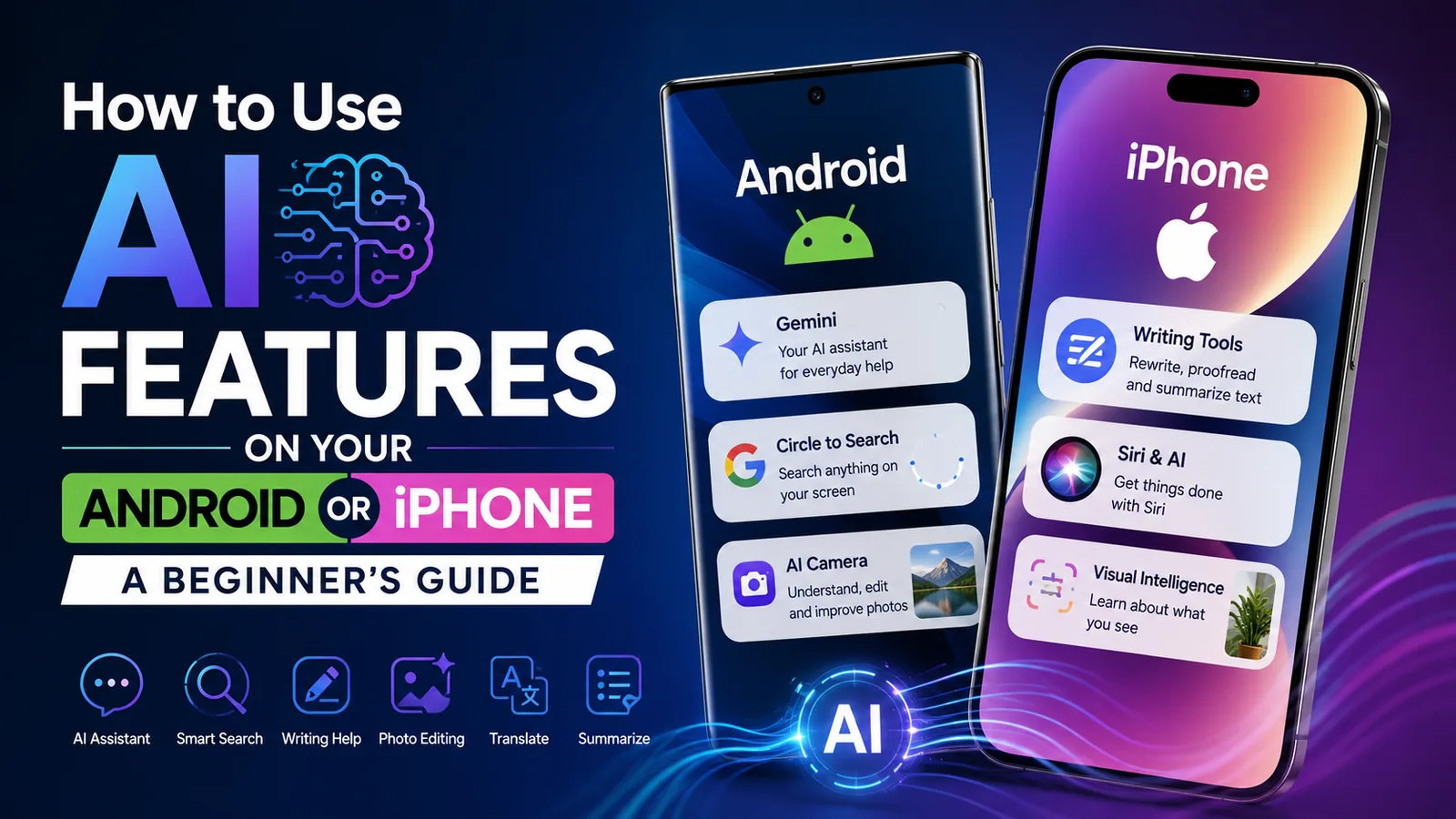
Artificial intelligence is no longer something you only use on a computer. Many modern Android phones and iPhones now include AI-powered tools that can help you write messages, search for information, translate text, summarize content, edit photos, and even have conversations with an AI assistant.
The good news is that you don't need to be an AI expert to use these features.
Whether you have an Android phone or an iPhone, this beginner's guide will show you some of the most useful AI features available today and how you can start using them in everyday situations.
Note: AI features vary depending on your phone model, operating system, language, region, and software version. Some features also require a newer device.
What Are AI Features on a Smartphone?
AI features are tools that use artificial intelligence to understand information and help you perform tasks.
Instead of simply following a fixed command, an AI-powered feature can often understand natural language, recognize images, summarize information, generate text, or provide suggestions.
For example, you could ask your phone:
- "Summarize this text."
- "Help me write a professional email."
- "Translate this sign."
- "What is this object?"
- "Create a packing list for my trip."
- "Explain this topic in simple words."
The exact features available depend on whether you use Android or iPhone.
AI Features on Android Phones
Android phones offer several AI-powered tools. Google's Gemini is one of the most prominent examples, while features such as Circle to Search can make it easier to find information without leaving the app you're using.
1. Use Gemini as an AI Assistant
Gemini is Google's AI assistant and can be used for writing, brainstorming, learning, planning, answering questions, working with images, and more.
On supported Android devices, you can interact with Gemini using text, voice, images, or your camera. Gemini can also work with certain Google services such as Gmail, Google Maps, and YouTube.
How to Use Gemini
- Open the Gemini app on your Android phone.
- Type a question or request.
- You can also use your voice instead of typing.
- For image-related questions, add a photo or use your camera.
- Review Gemini's response and ask a follow-up question if necessary.
For example, instead of searching for "easy dinner recipes," you could ask:
"Give me three easy dinner ideas using chicken, rice and vegetables."
You can then continue the conversation and ask Gemini to make a shopping list.
2. Try Gemini Live
Gemini Live is designed for more natural, spoken conversations with Gemini.
You can use it to brainstorm ideas, practice for an interview, discuss a topic, or have a back-and-forth conversation instead of typing every question.
How to Use Gemini Live
- Open Gemini.
- Tap the Live option when available.
- Follow the instructions on screen.
- Start speaking naturally.
You don't have to formulate a perfect question. You can explain what you're trying to accomplish and then ask follow-up questions.
For example:
"I'm preparing for a job interview. Can you pretend you're the interviewer and ask me some questions?"
Gemini can then help you practice.
3. Use Circle to Search
Circle to Search is one of the easiest AI-powered search features to understand.
Instead of taking a screenshot and manually searching for something, you can select text, an image, or another item directly on your screen.
How to Use Circle to Search
- Open the content you want to search.
- Activate Circle to Search by long-pressing the Home button or navigation handle, depending on your navigation settings.
- Circle or tap the object, image, or text.
- Review the search results.
Imagine you're scrolling through social media and see a pair of shoes you like.
Rather than typing a long description into Google, you can use Circle to Search to select the shoes and search for more information.
Circle to Search can also translate text on your screen, making it useful when reading foreign-language menus, websites, signs, or documents.
Keep in mind that Circle to Search is only available on selected Android models.
4. Use AI With Your Photos and Camera
AI can also make your phone's camera more useful.
Depending on your device and the apps available, you may be able to use AI to understand what's in a photo, identify objects, edit images, remove distractions, or get information about something you're looking at.
For example, you could take a picture of an unfamiliar plant or object and ask an AI assistant what it is.
You can also give an AI assistant a photo and ask questions about what appears in the image.
AI Features on iPhone
Apple uses the name Apple Intelligence for many of its AI-powered features.
Apple Intelligence is integrated into supported iPhone experiences and can help with writing, image-related tasks, Siri, translation, and other everyday activities.
However, Apple Intelligence isn't available on every iPhone. Availability can also depend on language and region.
1. Use Writing Tools
Writing Tools can be particularly useful if you frequently write emails, messages, notes, or other text on your iPhone.
Apple's Writing Tools can proofread text, rewrite it, change its tone, and summarize selected text.
How to Use Writing Tools
- Type your message or document.
- Select the text you want to change.
- Open Writing Tools.
- Choose an option such as proofreading, rewriting, or summarizing.
- Review the result before using it.
For example, you could write:
"Hey, I can't come to the meeting tomorrow because something came up."
Then ask Writing Tools to make the message more professional.
AI could turn a casual message into a more polished response without requiring you to rewrite it yourself.
2. Try Visual Intelligence
Visual intelligence lets supported iPhones use the camera and on-screen information to help you understand what you're looking at.
For example, you can use visual intelligence to learn more about objects, interact with information on your screen, and perform certain actions based on what the camera or screen identifies.
This can be useful when you're shopping, traveling, studying, or simply curious about something around you.
3. Use Siri With Apple Intelligence
Siri has also become part of Apple's broader AI strategy.
On supported devices and software versions, Siri can help you interact with your iPhone using natural-language requests. Apple's AI capabilities for Siri continue to develop through software updates.
You might use Siri to:
- Set reminders
- Ask questions
- Find information
- Manage certain device functions
- Get help using Apple features
The exact capabilities available to you depend on your device, software version, language, and region.
4. Use ChatGPT With Apple Intelligence
Apple Intelligence can also integrate ChatGPT into certain experiences.
This can be useful when you want additional help with writing, answering questions, or other supported tasks.
When Apple's built-in tools aren't enough for a particular request, ChatGPT can provide additional assistance through supported Apple Intelligence experiences.
What Can You Actually Do With AI on Your Phone?
You don't need to use AI for complicated tasks. Some of the best uses are simple everyday problems.
Writing
Ask AI to:
- Rewrite a message
- Check grammar
- Make an email more professional
- Summarize a long piece of text
- Change the tone of your writing
Learning
You can ask:
"Explain this like I'm a beginner."
You can also ask follow-up questions until you understand the subject.
Travel
AI can help you create:
- Packing lists
- Travel itineraries
- Restaurant ideas
- Activity suggestions
- Translation help
For example:
"Create a two-day itinerary for a weekend trip and keep the activities close together."
Photos
AI can help you understand images, identify objects, search for things you see, and perform supported photo-editing tasks.
Organization
You can use AI to create:
- To-do lists
- Shopping lists
- Reminders
- Study plans
- Daily schedules
The key is to treat AI as an assistant rather than something that needs complicated instructions.
Do You Need a New Phone to Use AI?
Not necessarily.
Many AI tools are available through apps and online services, so even phones without advanced built-in AI hardware may be able to access some AI features.
However, some features are specifically tied to newer devices.
For example, Apple's Apple Intelligence-compatible devices include supported newer iPhone models. Android availability also varies considerably by manufacturer and model.
Before buying a phone specifically for AI, check the manufacturer's current compatibility list rather than assuming every feature will work on every model.
Important Things to Know Before Using AI
1. Check Important Information
AI can sometimes provide incorrect or incomplete answers.
Don't automatically trust an AI response when dealing with important information such as financial decisions, legal matters, medical questions, or other high-stakes situations.
Use AI as a starting point and verify important information with reliable sources.
2. Be Careful With Personal Information
Think before entering sensitive information into an AI tool.
Avoid sharing things such as:
- Passwords
- Banking information
- Government identification numbers
- Private account information
- Confidential work documents
Always review the privacy settings and policies for the AI service you're using.
3. Features Can Change
AI features are developing quickly.
A feature available today may receive changes through a future software update, while new capabilities may be added later.
Your experience may also differ based on your country, language, phone model, and software version.
4. Keep Your Phone Updated
If you want access to the latest AI features, keep your phone and relevant apps updated.
An AI feature may not appear simply because your phone supports it. You may also need the latest operating system or app version.
The Best AI Features to Try First
If you're completely new to AI, you don't need to try everything at once. Start with a few simple features.
Android Users
- Gemini – for questions, writing, planning, and learning.
- Circle to Search – for identifying and searching things on your screen.
- Gemini Live – for natural voice conversations.
- AI photo tools – for understanding and editing images, where supported.
iPhone Users
- Writing Tools – for proofreading, rewriting, and summarizing.
- Visual Intelligence – for understanding things around you or on your screen.
- Siri – for everyday voice-based tasks.
- ChatGPT integration – for additional AI assistance through supported Apple Intelligence features.
Start with one feature and find a practical reason to use it. Once you're comfortable, try another.
Final Thoughts
AI is quickly becoming a normal part of the smartphone experience.
You don't need to understand how artificial intelligence works behind the scenes to benefit from it. What matters is knowing which tools are available on your phone and how they can solve everyday problems.
Android users can explore tools such as Gemini, Gemini Live, and Circle to Search, while supported iPhone users can try Apple Intelligence features such as Writing Tools, Visual Intelligence, Siri, and ChatGPT integration.
The best way to get started is simple: pick one small task, such as rewriting a message, translating something on your screen, creating a shopping list, or asking a question, and let your phone's AI help.
Just remember to verify important information and protect your personal data.
As smartphone AI continues to develop, learning how to use these tools today can help you get more value from the phone you already carry every day.