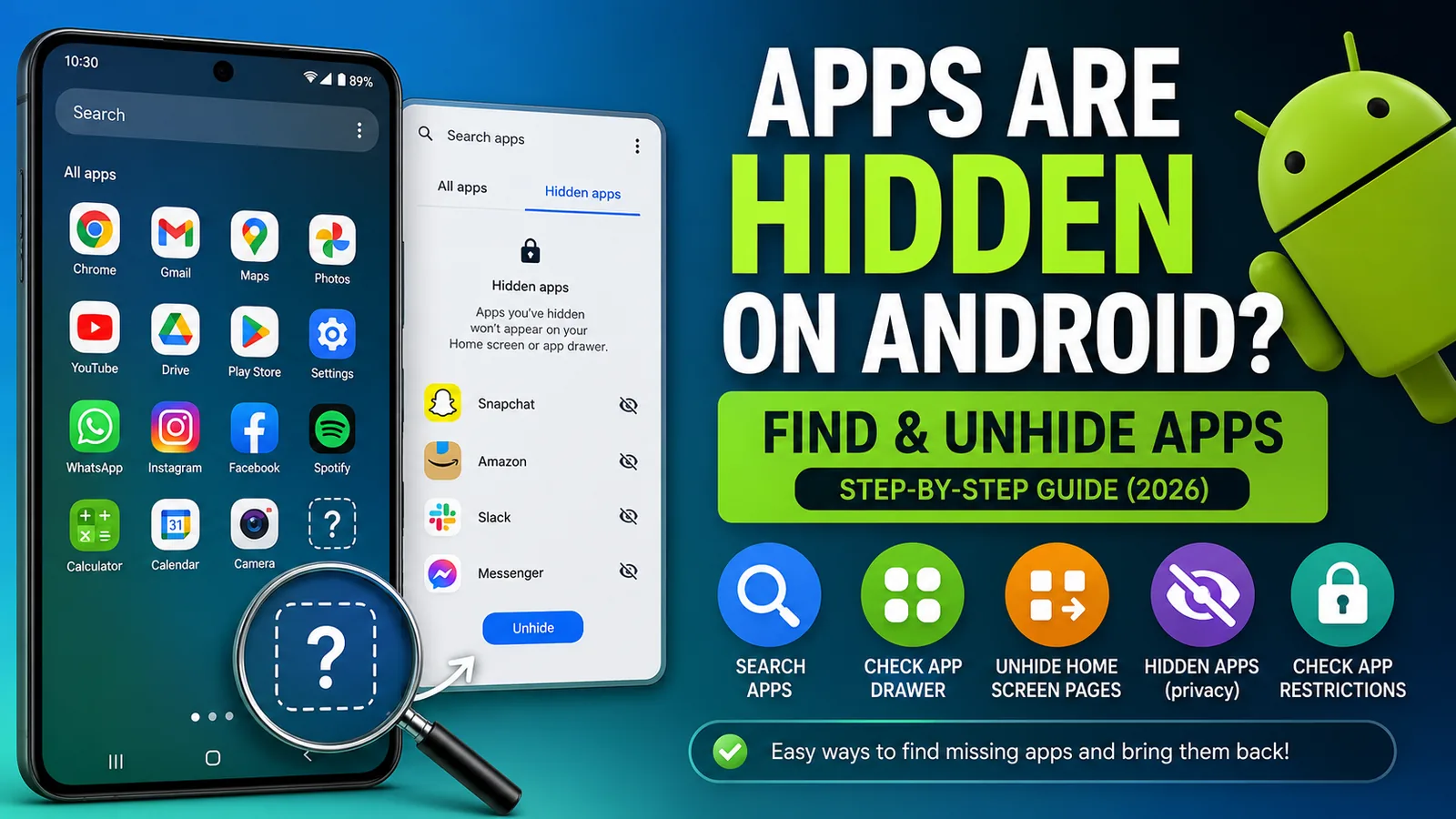
Can't find one of your Android apps? You're not alone.
Android phones offer several ways for apps to become hidden without being deleted. Depending on your device manufacturer and Android version, an app may be hidden in the app drawer, disabled, moved to a hidden folder, restricted by parental controls, or simply removed from the Home Screen.
The good news is that most hidden apps can be found and restored in just a few minutes.
This guide covers the latest Android 15 and Android 16 features and works for Samsung Galaxy, Google Pixel, Motorola, OnePlus, Xiaomi, OPPO, vivo, and many other Android phones.
Why Are Apps Hidden on Android?
There are several reasons why an app may no longer appear on your phone:
- The app icon was removed from the Home Screen.
- The app was hidden in the App Drawer.
- The app has been disabled.
- Digital Wellbeing or parental controls are restricting access.
- A launcher is hiding the app.
- The app was accidentally uninstalled.
- A recent software update changed your launcher layout.
Fortunately, each of these problems has a simple solution.
Method 1: Search for the App
The quickest way to locate a missing app is by using Android Search.
Steps
- Open the App Drawer.
- Tap the Search bar.
- Enter the app's name.
- If it appears, tap it to open.
- Long-press the app icon and drag it to the Home Screen if desired.
If Search finds the app, it's still installed.
Method 2: Check the App Drawer
Many users mistakenly think an app has disappeared when it's simply no longer on the Home Screen.
To check:
- Swipe up from the Home Screen.
- Open the App Drawer.
- Browse or search for the app.
- Press and hold it.
- Select Add to Home Screen or drag it to your preferred location.
Method 3: Check Hidden Apps (Samsung Galaxy)
Samsung phones include a feature that allows apps to be hidden from the App Drawer.
To unhide apps:
- Open the App Drawer.
- Tap the three-dot menu.
- Select Settings.
- Tap Hide apps on Home and Apps screens.
- Remove the app from the hidden list.
- Tap Done.
The app will immediately reappear.
Method 4: Check Your Launcher Settings
If you're using launchers such as:
- Nova Launcher
- Microsoft Launcher
- Smart Launcher
- Niagara Launcher
- Lawnchair
they often include their own hidden-app settings.
Open your launcher's settings and look for:
- Hidden Apps
- App Visibility
- Drawer Settings
- Hidden Folder
Disable the hidden status to restore the app.
Method 5: Make Sure the App Isn't Disabled
Android allows system and some downloaded apps to be disabled.
Check by following these steps:
- Open Settings.
- Tap Apps.
- Select See All Apps.
- Find the missing app.
- If you see Enable, tap it.
Disabled apps won't appear in the launcher until they are enabled again.
Method 6: Check Digital Wellbeing & Parental Controls
Some apps may be restricted using:
- Google Family Link
- Digital Wellbeing
- Parental Controls
- Work Profile policies
Review these settings to ensure the app hasn't been blocked.
Method 7: Check Secure Folder (Samsung)
Samsung devices may move apps into Secure Folder.
To check:
- Open Secure Folder.
- Unlock it using your PIN or fingerprint.
- See whether the missing app is stored there.
- Move it back if necessary.
Method 8: Reinstall the App
If the app isn't installed anymore:
- Open the Google Play Store.
- Search for the app.
- If you see Install, download it again.
- If you see Open, the app is already installed.
After installation, the icon should appear automatically.
Method 9: Clear the Launcher Cache
Sometimes the launcher fails to display installed apps correctly.
To clear it:
- Open Settings.
- Go to Apps.
- Select your launcher (Pixel Launcher, One UI Home, Nova Launcher, etc.).
- Tap Storage & Cache.
- Tap Clear Cache.
Restart your phone afterward.
Method 10: Restart Your Phone
Many app visibility issues are temporary.
Restarting your Android phone refreshes:
- App indexing
- Launcher cache
- Background services
- Home Screen layout
A simple reboot often restores missing icons.
Method 11: Update Android
Manufacturers regularly release updates that fix launcher bugs and app display issues.
To check for updates:
- Open Settings.
- Tap System.
- Select Software Update.
- Install the latest available update.
Frequently Asked Questions
Why did my Android app disappear?
The app may have been hidden by your launcher, disabled, removed from the Home Screen, placed inside Secure Folder, or accidentally uninstalled.
Can apps be hidden on Android?
Yes. Many Android phones and third-party launchers include built-in options for hiding apps without uninstalling them.
How do I restore an app icon?
Open the App Drawer, locate the app, then press and hold its icon and drag it back to your Home Screen.
Why can't I find an app after an Android update?
Software updates sometimes reorganize Home Screen layouts or reset launcher settings. Search for the app or check the App Drawer before reinstalling it.
Does clearing launcher cache delete my apps?
No. Clearing the launcher cache only refreshes how app icons are displayed. Your installed apps and personal data remain safe.
Final Thoughts
Missing Android apps are usually easy to recover. In most cases, the app is still installed—it has simply been hidden by your launcher, removed from the Home Screen, disabled, or placed in a secure area.
Before reinstalling an app, check the App Drawer, launcher settings, hidden app options, Secure Folder, and your system settings. These steps solve the vast majority of missing app issues across Samsung, Google Pixel, Motorola, OnePlus, Xiaomi, OPPO, vivo, and other Android devices.
Keeping Android updated and using a trusted launcher can also help prevent apps from seemingly disappearing in the future.