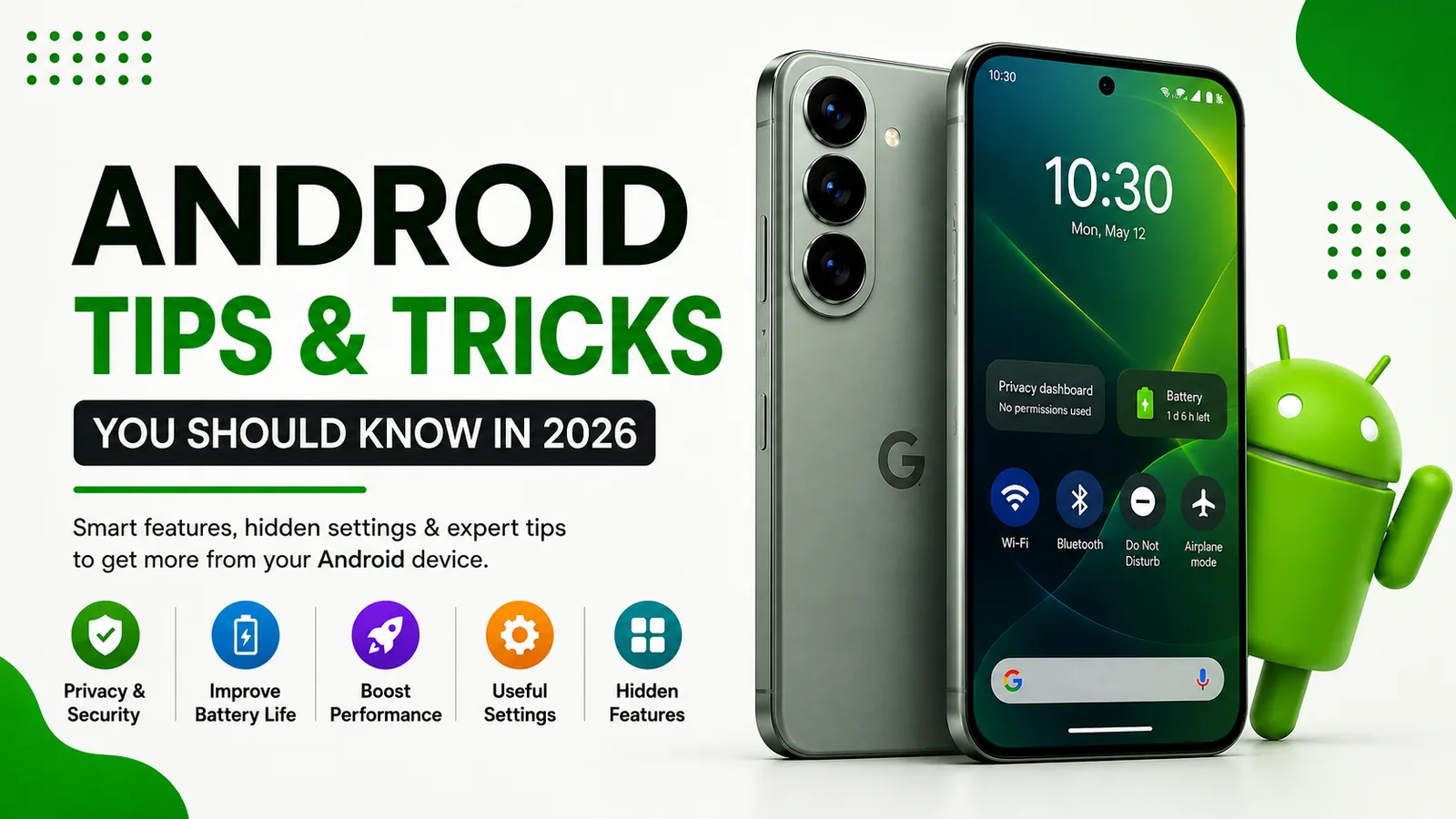
Android Tips and Tricks You Must Know in 2026
Android smartphones have become more powerful, intelligent, and customizable than ever before. Whether you use a Samsung Galaxy, Google Pixel, OnePlus, Motorola, Xiaomi, or another Android device, there are dozens of built-in features that can improve battery life, boost performance, enhance privacy, and make everyday tasks easier.
Here are some of the best Android tips and tricks every user should know in 2026.
1. Review App Permissions Regularly
Many apps request access to your location, camera, microphone, contacts, and photos. Android now provides detailed privacy controls that allow you to decide exactly what each app can access.
- Open Settings → Security & Privacy → Privacy
- Review Camera, Microphone, Location, and Contacts permissions
- Remove access from apps that do not need it
- Use "Only While Using the App" whenever possible
This simple habit improves privacy and can also reduce battery consumption.
2. Enable Theft Protection Features
Modern Android devices include advanced anti-theft protection. If your phone is lost or stolen, Android can automatically lock it and help protect your personal data.
- Enable Find My Device
- Turn on Theft Detection Lock
- Enable Remote Lock options
- Verify your recovery information is up to date
3. Use Adaptive Battery
Android's Adaptive Battery learns how you use your device and reduces power usage for apps you rarely open.
- Open Settings → Battery
- Enable Adaptive Battery
- Restrict battery usage for apps you rarely use
This can significantly improve battery life without affecting daily performance.
4. Customize Your Quick Settings Panel
Quick Settings gives instant access to commonly used functions.
- Wi-Fi
- Bluetooth
- Flashlight
- Hotspot
- Screen Recording
- Do Not Disturb
- Wallet
- Device Controls
Swipe down twice and tap the edit button to arrange tiles based on your preferences.
5. Enable Automatic Backups
Many users only realize the importance of backups after losing their phone.
Android can automatically back up:
- Photos
- Contacts
- Messages
- App data
- Device settings
Go to Settings → Google → Backup and ensure backup is enabled.
6. Use Focus Mode to Reduce Distractions
Notifications can quickly become overwhelming. Focus Mode temporarily pauses distracting apps so you can stay productive.
- Open Settings
- Select Digital Wellbeing
- Configure Focus Mode
- Choose apps to pause during work or study sessions
This is especially useful for social media and gaming apps.
7. Find Battery Draining Apps
If your phone battery suddenly starts draining faster than usual, one of your apps may be responsible.
- Open Settings → Battery
- Review Battery Usage
- Identify apps consuming excessive power
- Restrict or uninstall problematic apps
8. Use Nearby Share and Quick Share
Transferring files between Android devices is easier than ever.
Nearby Share and Quick Share allow you to send:
- Photos
- Videos
- Documents
- Links
- Apps
without cables, email attachments, or third-party apps.
9. Enable Screen Recording
Most Android phones now include a built-in screen recorder.
You can use it for:
- Creating tutorials
- Recording gameplay
- Capturing app demonstrations
- Documenting software issues
Add Screen Recorder to your Quick Settings panel for easy access.
10. Use Split Screen Multitasking
Android allows two apps to run simultaneously.
Examples include:
- Watching YouTube while taking notes
- Browsing the web while chatting
- Viewing email while updating a spreadsheet
Open Recent Apps and choose the Split Screen option when available.
11. Secure Your Phone with Passkeys
Passkeys are becoming the preferred replacement for passwords in 2026.
They offer:
- Better security
- Faster logins
- Protection against phishing attacks
- Biometric authentication support
Whenever a service supports passkeys, use them instead of traditional passwords.
12. Remove Unused Apps
Unused apps consume storage space, system resources, and sometimes background battery power.
Every few months:
- Review installed applications
- Remove apps you no longer use
- Clear unnecessary downloads and cached files
This helps keep your device running smoothly.
13. Keep Android Updated
Security updates are one of the most important parts of smartphone ownership.
Updates often include:
- Security patches
- Performance improvements
- Bug fixes
- New Android features
Go to Settings → System → Software Update and install updates whenever they become available.
14. Enable Dark Mode
Dark Mode reduces eye strain, looks great on OLED displays, and can help extend battery life on many Android phones.
You can schedule Dark Mode automatically or leave it enabled permanently.
15. Use Built-In Security Checks
Google Play Protect continuously scans installed applications for harmful behavior.
- Open Google Play Store
- Tap your profile icon
- Select Play Protect
- Run a manual scan if needed
Combined with good security habits, this provides strong protection for most Android users.
Final Thoughts
Android continues to evolve with smarter AI features, stronger privacy controls, better battery management, and improved security. By taking advantage of these tips and tricks, you can get more performance, longer battery life, and a safer experience from your Android device in 2026.
The best Android phone is not necessarily the newest one—it is the one that is properly optimized and configured for the way you use it every day.